
Troubleshooting
Last updated: 2026-05-15
Your Trainer is a multi-rider indoor cycling app for Android tablets. Smart-trainer control with local data + local control. One-time purchase.
Common issues across connection, ride feel, imports, sync, and the AI Coach — with the fix or workaround for each. If your problem isn't here, drop us a note at [email protected].
Trainer connection & Bluetooth
The trainer doesn't appear in the scanner
Make sure the trainer is awake and in Bluetooth range — most smart trainers wake on a quarter-pedal-rotation. Check the system Bluetooth toggle is on. If your tablet is on Android 12 or newer, confirm Your Trainer has the Nearby devices permission (Settings → Apps → Your Trainer → Permissions). Older Android versions need Location instead.
Equipment Hub slot stuck on "Connecting…"
The trainer was found but the GATT connection didn't complete. Wake the trainer again (a quarter-pedal-rotation usually does it) — Bluetooth power-saves on most trainers and a stale advertisement in the scanner can outlast the trainer's actual radio state. If the slot stays on Connecting… for more than 30 seconds, tap the slot's ⋮ menu → Forget device, then re-add the trainer from the scanner.
Trainer connects but resistance doesn't change
Confirm the trainer reports FTMS support. Trainers without FTMS aren't supported. The Equipment Hub on the workout-selection screen shows the connected trainer; if it connects but resistance is fixed, the trainer is likely speaking the legacy CSC profile (cadence/speed) only.
"Tap to reconnect" doesn't reconnect
Usually a stale connection on the trainer side. Power-cycle the trainer (unplug for 5 seconds, plug back in) and try the slot again. If the rider still doesn't reconnect, slot's ⋮ menu → Forget device, then re-add via the scanner.
How do I forget a trainer or HRM?
Three places, any of them works:
- Equipment Hub slot → ⋮ menu → Forget device. Fastest if the workout-selection screen is already open.
- Settings → Hardware → tap the device row → Forget device. The right path if you want to clear out the saved trainer without opening a workout.
- Profile → Connected → tap the HRM row → Forget device. Per-rider; useful in a household where each rider has their own HRM.
Forgetting clears the saved preferred device and stops the auto-connect on launch. Add the device again from the Equipment Hub scanner whenever you want it back.
Resistance feels too light or too heavy
Three escape hatches in Settings → Hardware → Slope behaviour:
- Auto (default) — Your Trainer picks the best mode the trainer reports it supports.
- SIM — full-range slope simulation; needs an FTMS trainer that supports it.
- Resistance — stepped resistance levels. More predictable on trainers whose resistance control is less precise.
- ERG — target-power mode. Best for structured workouts where the rider controls cadence and the trainer controls power.
Also check Profile → Virtual Gears: Linear (26), Road (22), and MTB (12) presets give different gear-resistance curves. Switch presets if the gearing feels wrong.
Is my trainer on the compatibility list?
Settings → Hardware → Check compatibility looks up the connected trainer and shows whether it is Verified, Expected to work, Not listed, or Known not to work. If it isn't verified yet, the result screen offers a short ERG, SIM, and Resistance test — and a passing result may qualify Free tier riders for a one-time complementary Pro upgrade. Full details in the hardware guide.
Heart-rate monitor
HRM connects then drops mid-ride
Battery is the most common cause — chest-strap CR2032s last about 18 months but lose connection reliability before they fully die. Replace, then forget and reconnect via the Equipment Hub before the next session. If a fresh battery doesn't fix it, the strap may need re-wetting at the contact pads (sweat conducts; dry contacts don't).
On a transient mid-ride drop, the cockpit recovers without ending the workout — the way you reconnect depends on the ride type. On a Power or Route ride the HR widget on the cockpit becomes tappable and reads tap to reconnect — tap it to retry. On an HR-Zone ride the workout pauses, the HR label reads Heart-rate signal lost, and the START button reverts to LINK HRM — wake the sensor and tap LINK HRM to resume. Either way the workout's accumulated data isn't lost.
HR-Zone workouts won't start
HR-Zone rides require an active HRM connection — the START button reads LINK HRM until the HRM is connected. Once connected, it morphs to Start. If the HRM disconnects mid-ride, the ride auto-pauses; reconnect to resume.
HRM shows but no data on the dashboard
The HRM is connected but not reporting. Common causes: the device has gone to standby (most chest straps wake on body contact — start moving for a few seconds), or the contact pads are too dry (apply a little water or sweat).
Workout & route imports
"File is malformed or not a valid route file."
The parser couldn't read the file's structure — usually a corrupted download, an unsupported format variant, or HTML saved with a .gpx / .tcx extension. Re-download from the source if you can.
"Track points have no elevation data — route needs elevation to ride."
Route rides are slope-driven; the file needs elevation on every track point. GPX files from indoor mapping tools or GPS-only smartphone exports often lack this. Run the file through a tool that adds elevation from a digital elevation model — GPS Visualizer works well. The routes guide has a worked example.
"No track points found in the file."
The file is structurally valid but contains no actual GPS points — usually clipped to zero before export, or a route definition without trackpoints. Check the source export options.
"Unsupported file type — please select a .ytw file" / ".gpx .fit .tcx"
The tab you imported into doesn't accept that extension. The Power tab takes .ytw and .zwo; Heart Rate takes .ytw; Route takes .gpx / .fit / .tcx. The share sheet auto-detects the file type and routes to the right tab — try that instead.
"File is malformed or not a valid .zwo file."
The Zwift workout XML is structurally invalid. Often a workout exported from a mod or third-party tool that doesn't match the Zwift schema. Open in a text editor and check the root element is <workout_file> with proper child structure.
The workout / route imports but doesn't appear in the library
Pull-to-refresh on the workout-selection screen, or back out and re-enter. The library loads once on screen entry; an import after that point updates in-memory but the visible list refreshes on the next compose.
AI Workout Coach errors
"Couldn't reach the AI provider."
Network or provider outage. Retry; check the tablet's connection. If it persists, switch providers in Settings → AI Coach → Provider — the three providers (Gemini / OpenAI / Claude) fail independently, so a different one usually works.
"Couldn't parse the AI response as a workout."
The model returned text that wasn't valid workout JSON. Usually a one-off; retry. If a specific prompt repeatedly produces this, simplify the prompt — multi-paragraph training-week descriptions push the model toward freeform output instead of structured.
"The AI declined to generate this workout."
A content-policy refusal. Rare for sports prompts; rephrase the language neutrally and retry.
Screen & system behaviour
Screen turns off mid-ride
Your Trainer holds a wake-lock during a ride — the screen should stay on while connected and pedalling. If it turns off, this is the Android battery saver suspending the app. Open Android Settings → Apps → Your Trainer → Battery and set it to "Don't optimize" (or equivalent). Aggressive battery savers on some manufacturers (Samsung, Huawei, Xiaomi) need explicit per-app exceptions.
Strava sync
Upload pill stuck on "Uploading…"
WorkManager retries with exponential backoff for up to ~10 minutes on a poor connection. After that the pill flips to Retry. If WiFi was off entirely, reconnect and tap Retry — uploads resume from the queue.
"Open in Strava" instead of "View on Strava"
The session uploaded successfully but Strava's API hasn't returned an activity ID yet (sometimes takes a minute or two for processing). The reconciliation sweep on app foreground or via Profile → Strava → Refresh will resolve it.
I deleted an activity on Strava and it still shows "View on Strava"
Reconciliation runs on app foreground (auto) or Profile → Strava → Refresh (manual). Once the deletion is detected, the pill flips back to the white [☁] Strava upload affordance.
Storage & data
Where is my data stored?
Locally on your tablet. Workouts and ride history live inside the app's private storage. Strava sync is opt-in — rides only leave the device after you authorise it.
How do I back up or move my data?
Several paths, depending on what you want:
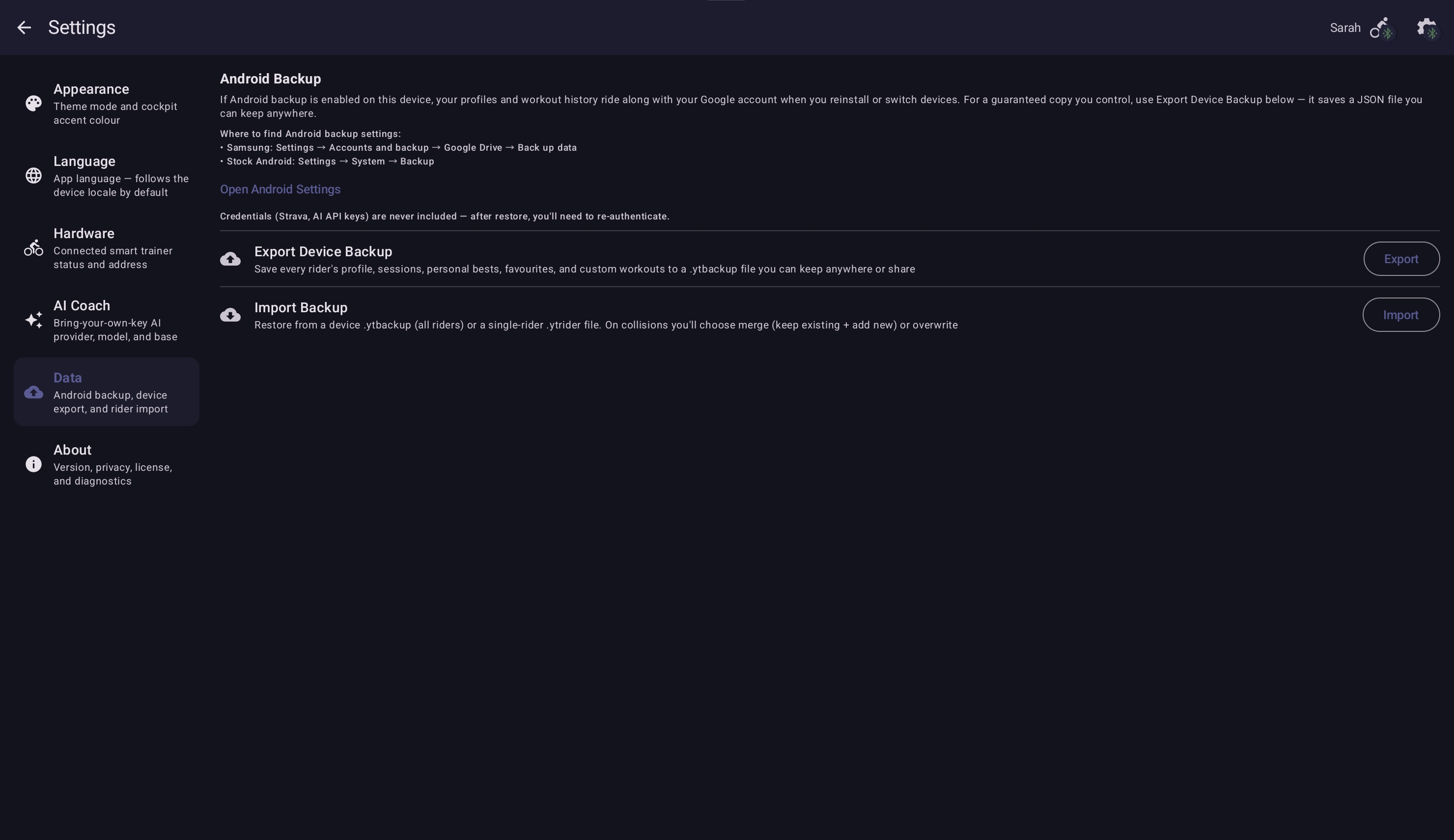
- Device backup — Settings → Data → Export Device Backup writes a
.ytbackup.json.gzfile containing every rider's profile, sessions, personal bests, favourites, and custom workouts in one file. The most complete export. Restore via Settings → Data → Import Backup (merge or overwrite on collisions). - Per-rider export — Profile → Export My Data writes a
.ytrider.json.gzfile for the selected rider only. Useful for sharing one rider or moving a single rider between devices. Three restore paths: rider-selection screen → + Add Rider → Import from file, Settings → Data → Import Backup, or Profile → Data → Import & Merge on an existing rider (merges sessions and PBs into the active rider; duplicates skipped). - Strava sync mirrors completed rides to your Strava account, which you can export from there.
- Android system backup — separate from the in-app exports above. If Android backup is enabled on your device (Android Settings → System → Backup) and a Google account is signed in, your profiles and workout history ride along with the Google account when you reinstall or switch devices.
- Per-session exports — the history overflow menu offers Export FIT for individual rides; the Past Sessions section offers Export CSV.
Credentials (Strava authorisation, AI API keys) are not included in any backup. After a restore you'll need to reconnect Strava and re-enter API keys.
The library is empty after a reinstall
The bundled workouts re-appear automatically. To restore your imported workouts and history, use the rider-selection screen → + Add Rider → Import from file with the .ytrider.json.gz you saved earlier — sessions, personal bests, and imported workouts all come back.
Language & localization
Some text is in English when I picked another language
Occasionally a freshly-added string lands in a release before its translation. Tap the Report it button in Settings → Language and we'll fix it.
App update / Play install
"Update available" but Play Store doesn't offer it
Play Store rolls updates out staged — your device may not be in the current rollout cohort yet. Wait 24–48 hours, or join the open beta in Play Store → Your Trainer → "Join the test" if you want updates earlier.
App won't install on my device
Your Trainer requires Android 10 or newer. Older Android versions show "incompatible" on the Play Store listing. The hardware guide covers device recommendations for tablets and phones.
Still stuck
Email [email protected] with a one-line description and the app version (Settings → About → tap the version line). Logcat output (adb logcat -s YourTrainer) helps for tricky connection or import issues. We triage every report.