
AI Prompt Skills
Last updated: 2026-06-14
Your Trainer is a multi-rider indoor cycling app for Android tablets. Smart-trainer control with local data + local control. One-time purchase.
The AI Workout Coach generates a structured workout from a plain-text description. The clearer the prompt, the better the output. A handful of patterns get you most of the way there; the rest is taste.
.ytw file and runs the training-load math. Format-hallucination errors drop to near zero; history answers stop drifting between sessions.What the AI Coach actually sees
This section covers workout generation — the AI Workout Coach you launch from a workout tab. The History Assistant on the Workout History screen is a separate flow with different inputs; see Ask AI Coach about your history below.
For workout generation, the AI sees, in order:
- The text you typed.
- The tab you launched from — Power or Heart Rate. Power tab returns intervals expressed as a percentage of FTP; Heart Rate tab returns zone-anchored intervals (Z1–Z5).
- Your current locale (so it picks the language for interval labels and cues).
Power workouts come back as percentages of FTP (e.g. targetPowerPercent: 90 for a sweet-spot block); your trainer applies your stored FTP locally at ride time to translate that into wattage. The same generated workout therefore rides correctly for a 200 W rider and a 300 W rider — different wattages, same relative effort. Hand a .ytw file to a friend and it works for them too.
If a workout should fit a context — last week's training, your typical riding style, a multi-week plan you're working through — put the context in the prompt.
Anatomy of a good prompt
Vague prompts produce generic workouts. Specific prompts produce purposeful ones. Five components worth being explicit about:

| Component | Example | Why it helps |
|---|---|---|
| Total duration | "60 minutes total" | The model defaults to 45–60 minutes if you don't say. Always specify if you want something different. |
| Intensity | "95–100 % FTP for the work blocks" | "Hard" is ambiguous. A wattage range is concrete. |
| Structure | "Two 20-minute intervals with 5 minutes recovery between" | Names the interval shape directly. |
| Cadence target | "Low cadence, 60–70 RPM" | Optional. Useful for low-cadence climbing or high-cadence drills. |
| Coaching cues | "Add motivation cues during the work blocks" | The model will sprinkle short text overlays into the intervals. |
Compare:
- Vague: "A threshold workout."
- Better: "60 minutes of threshold work with two 20-minute intervals at 95–100 % FTP and a long warm-up."
Pattern library
Tested prompts that produce reasonable output. Copy, paste, adjust the numbers.
Z2 endurance
90 minutes of steady Z2 endurance at 65–72 % FTP.
10-minute warm-up ramping from 50 % to 65 %, then steady,
with a 5-minute cooldown.
Sweet spot
60 minutes total. 15-minute warm-up, then two 18-minute
sweet-spot blocks at 90 % FTP with 5 minutes of Z2 between.
Cool down for the rest.
Threshold (2×20, 4×8)
2×20 at threshold: 75 minutes total, 15-minute warm-up, two
20-minute intervals at 95–100 % FTP separated by 8 minutes
of recovery, then cool down.
4×8 at threshold: 60 minutes total, 12-minute warm-up,
four 8-minute intervals at 100 % FTP with 4 minutes recovery
between, cool down for the rest.Over-unders
Over-unders: 60 minutes total, 12-minute warm-up, three sets
of (3 minutes at 95 % FTP / 1 minute at 105 % FTP) with no
recovery within a set, 5 minutes Z2 between sets, cool down.
VO2max
VO2max session, 50 minutes total. 15-minute warm-up, then
five 3-minute intervals at 115 % FTP with 3 minutes of easy
spinning between. Cool down at the end.
Microbursts
Microbursts: 45 minutes total. 10-minute warm-up, then 20
minutes of 30 seconds at 130 % FTP / 30 seconds at 50 % FTP
back to back. 15-minute cool-down.
Pyramid
Pyramid: 60 minutes total. 12-minute warm-up, then 1, 2, 3,
4, 3, 2, 1 minute Z5 efforts at 115 % FTP with equal-duration
recovery between. Cool down for the rest.
Recovery
30-minute recovery ride. Steady Z1 at 50 % FTP throughout,
high cadence (95–100 RPM). No intervals, no surges.
FTP test
FTP test, 20-minute protocol: 15-minute warm-up with three
1-minute openers at 110 % FTP near the end, 5 minutes easy,
then 20 minutes all-out at 100 % FTP, then 10-minute cooldown.
For the gentler ramp-test variant, use the bundled FTP Test (Ramp) workout from the Power tab — it's calibrated to the app's FTP-update flow.
Race simulation
90-minute race simulation: 15-minute warm-up, then alternating
between Z2 base (70 % FTP) and unpredictable surges — random
20-second to 90-second efforts at 110–130 % FTP every few
minutes. Steady Z2 cooldown at the end.
HR-Zone vs Power prompts
For heart-rate-driven sessions, generate from the Heart Rate tab — the editor's calling context drives the output shape, so the result will be HR-zone bands instead of power percentages. Use zone numbers in the prompt:
30 minutes of zone-2 endurance with two 3-minute zone-4
surges in the middle.
45 minutes total. Zone-2 base for 30 minutes, then 10 minutes
zone-3 tempo, then 5 minutes zone-2 cooldown.Heart-rate output stabilises slowly compared to power, so HR-zone workouts give the rider longer to settle into a zone — keep block durations to 3+ minutes for steady zones, 1+ minute even for surges.
Coaching-cue prompts
Coaching cues are short text overlays that fire on the cockpit during a ride. Ask for them explicitly:
Threshold intervals with motivation cues during the work
blocks — "stay smooth", "find your rhythm", that kind of
thing.
VO2max session with cadence and form reminders — call out
the start of each interval and remind me to stay relaxed in
the shoulders.Cues are stored alongside the interval. You can edit them in the visual editor after generation if the AI's choices don't match your taste.
Provider notes
Your Trainer supports three AI providers. They all produce valid .ytw JSON, but each has structural quirks worth knowing.
Gemini (default)
Gemini Flash is fast and cheap; Gemini Pro is slower and more thoughtful. The default model handles structured-output well, so JSON parsing rarely fails. Quirk: Gemini occasionally pads response text around the JSON; the parser strips this, so it's invisible to the rider.
OpenAI
The default model is gpt-4o. Output quality is consistent and structural reliability is high. Token limits make very long prompts (multi-paragraph training-week descriptions) more likely to truncate — keep the prompt to a few sentences for best results.
Claude
The default model is claude-sonnet-4-6. Strong with the prose-shaped parts of the output (cue text reads more naturally) and good at following elaborate constraints. Slightly slower than Gemini Flash; comparable to OpenAI.
Switching providers
Settings → AI Coach → Provider. You can also override the default model name per provider — useful if a newer model has been released and you want to try it before the app's defaults are updated.
Custom OpenAI base URL (self-hosted)
If you run an OpenAI-compatible API endpoint yourself — LM Studio, Ollama, llama.cpp, a corporate proxy — Settings → AI Coach → OpenAI Base URL lets you point Your Trainer at it. Drop the alternative endpoint in, leave the API key as whatever your endpoint expects (or blank for endpoints that don't require one), and prompts go there instead of openai.com. Useful for keeping AI generation entirely on your local network.
Auto-translating imported workouts
When you import a workout authored in a different language — a .ytw file with English labels and cues, but you ride the app in Dutch — the workout-detail screen shows a Translate button alongside the original-language strings. Tapping it sends the names, descriptions, labels, and cues to your configured AI provider and writes the translation back into the workout's strings block.
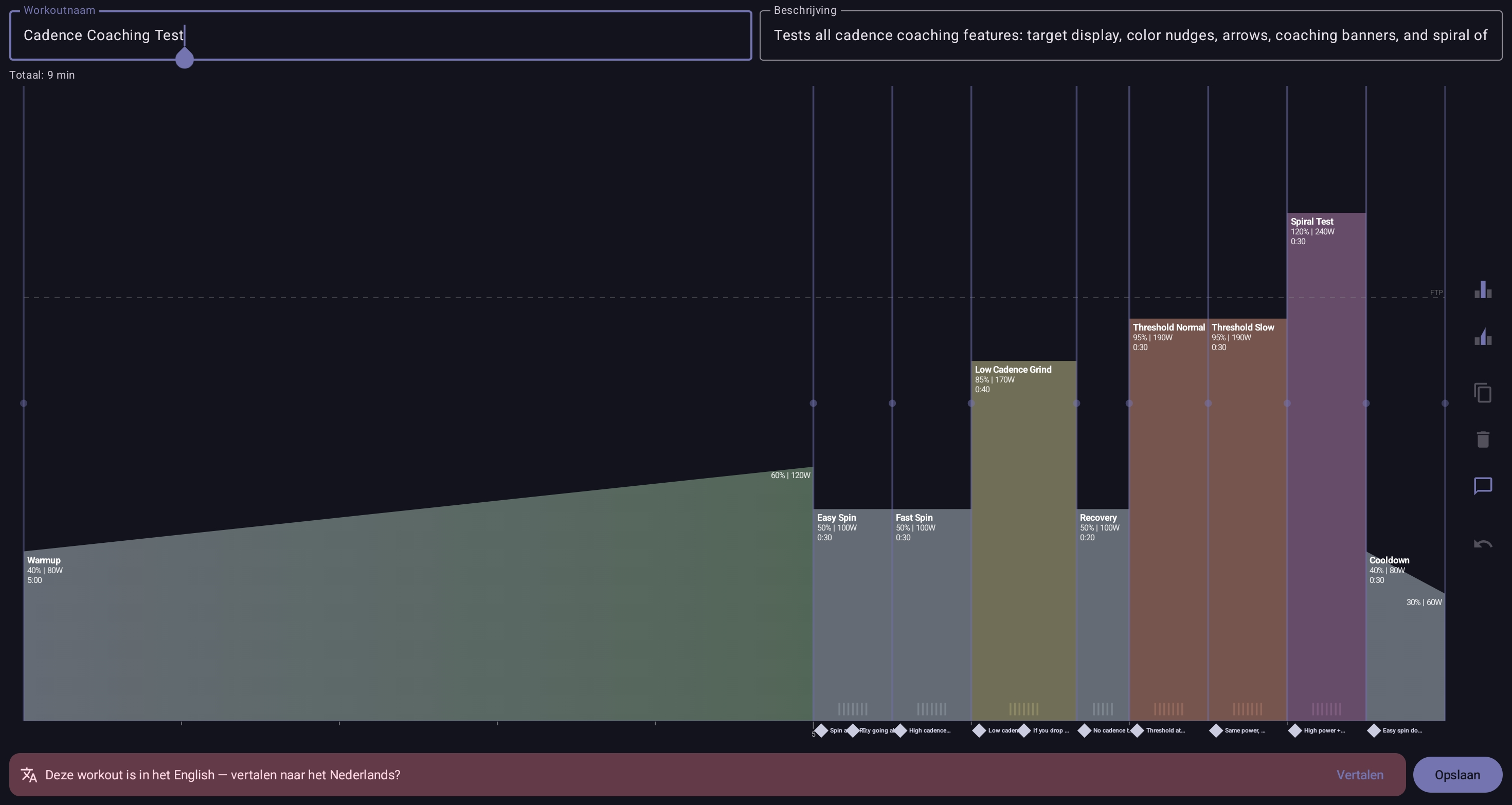
The translated strings persist with the workout, so the next time you open it you see the localised version directly. Original strings are preserved — translation adds an extra locale rather than replacing the source. Requires an AI API key (Settings → AI Coach).
Ask AI Coach about your history
The same AI provider you've configured for workout generation can also answer a question about your training history. Open the Workout History screen and use the Ask AI Coach input — type a question, get a text answer that summarises across your sessions and personal bests. Useful prompts:
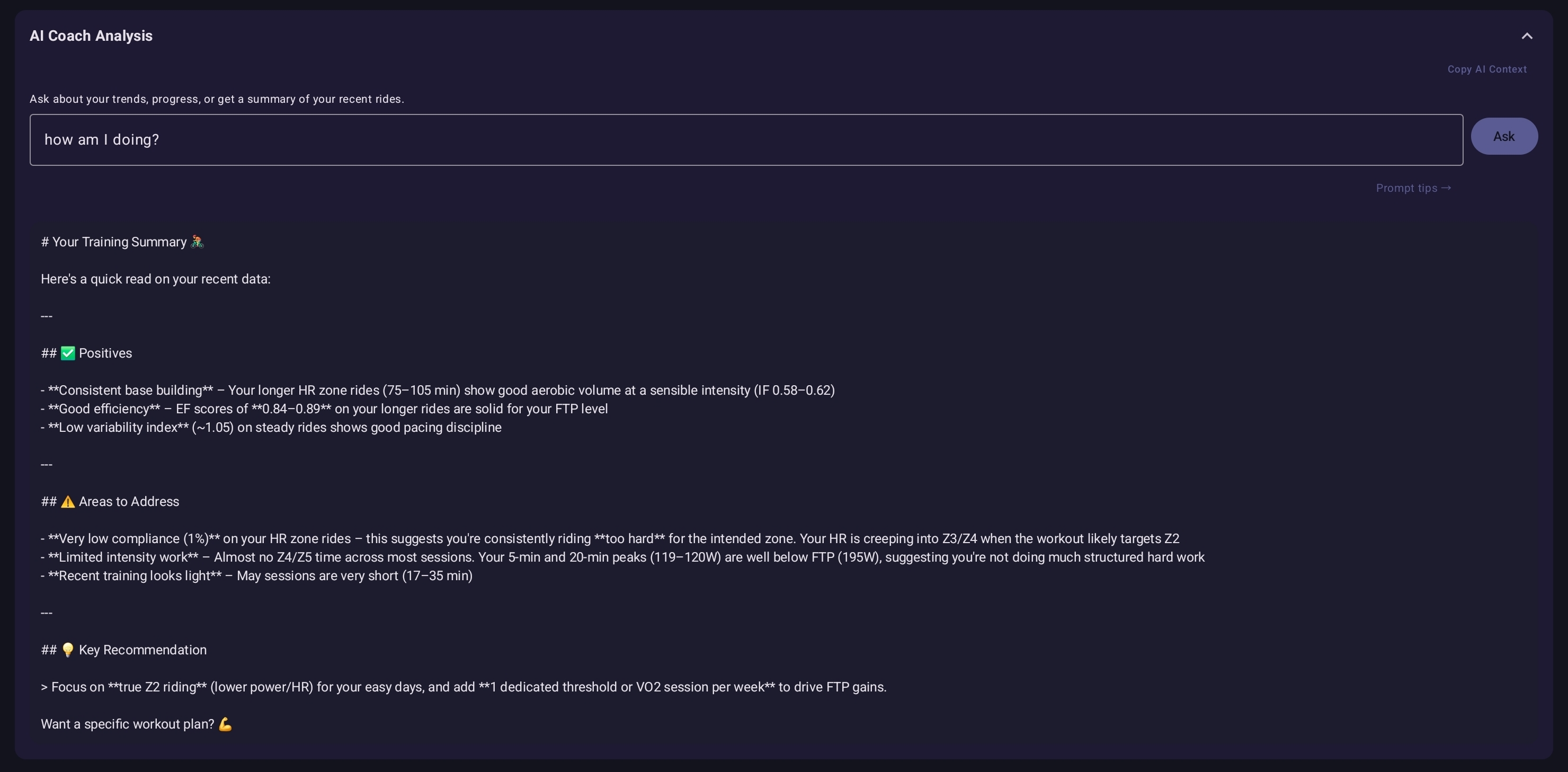
- "What was my hardest ride this month?"
- "Am I improving on the threshold workouts?"
- "How does my Z2 average power compare across the last four weeks?"
- "Show me my best routes by efficiency."
What gets sent to the provider. The History Assistant sends your FTP, weight (if set), maximum heart rate (if set), and unit preference, plus a summary of your last ~10 sessions — date, workout type, duration, distance and climb where recorded, average power and HR, total work, and any derived metrics that were computed (normalised power, intensity factor, variability index, TSS, peak power across standard durations from 5s to 20m, efficiency factor, time in each HR zone, compliance and recovery scores). Scoped to the active rider only. If you'd rather keep this off the provider entirely, don't use the History Assistant.
It's read-only — the AI summarises, compares, and surfaces trends but can't change your data, delete sessions, or modify workouts. Available on Pro and Family tiers.
Editing AI output by hand
AI output drops straight into the visual workout editor — every interval, cue, and cadence target is a regular block you can drag, duplicate, or delete. For more elaborate edits, save the workout, export to .ytw, and edit the JSON directly with the workout schema as reference.
A common pattern: generate a workout that's roughly right, then hand-tune one or two intervals (a longer warm-up, a slightly different recovery shape) without going back to the AI. Faster than trying to prompt-engineer the exact session.
When the AI fails
From v2.1.0 the deterministic parts of every AI flow (workout authoring, training-load math, validation) run through the MCP server rather than against raw LLM output, so the older "Couldn't parse the AI response as a workout" mode is mostly gone. Two failure modes remain in normal use:
- "Couldn't reach the AI provider." Network or provider outage. Retry; check your tablet's connection. If it persists, try a different provider — they fail independently.
- "The AI declined to generate this workout." Content-policy refusal. Rare for sports prompts; usually triggered by language the model interprets as describing harm. Rephrase neutrally.
One degraded mode: if the MCP server itself is unreachable, the AI Workout Coach falls back to the older direct-LLM path. Output is still valid most of the time, but the rare "Couldn't parse" message can reappear until MCP is back. The status of the public server is reported on the integrator page.
The full troubleshooting catalogue lives at Troubleshooting → AI Workout Coach errors.
What's behind the AI features
From v2.1.0 the AI Workout Coach, History Assistant, and Workout Translate all route their deterministic work — workout-file authoring, training-load math, ride analysis, format conversion — through Your Trainer's public MCP server at mcp.your-applications.com/your-trainer. The model proposes an intent; the MCP server builds the .ytw, runs the maths, and returns a validated result.
That split solves the two long-standing reliability issues:
- Format hallucination is gone. The model no longer emits
.ytwJSON directly, so near-valid-but-malformed output stops reaching the import path. The 5–10 % of workouts that used to fail to parse just don't fail any more. - History answers stop drifting. When you ask the History Assistant about training-load trends, the actual time-series arithmetic happens server-side against your real numbers. Two riders asking the same question of the same history get the same answer.
The MCP is stateless — no data retained — and is only invoked when you use a feature that needs it. If you'd rather route through your own server, the integrator page documents the protocol; if you build a tool that talks to Your Trainer files, you can use the same backend yourself. See the integrator documentation →